Settings & Notifications
Account → Settings. Everything about your account in tabs: profile and security, notifications, billing, TradingView and payouts.
In simple words
This is your account's control room: change your name and password, choose how we tell you about trades and problems (email or Telegram), and - if you are a leader or partner - where your money goes.Profile & Account
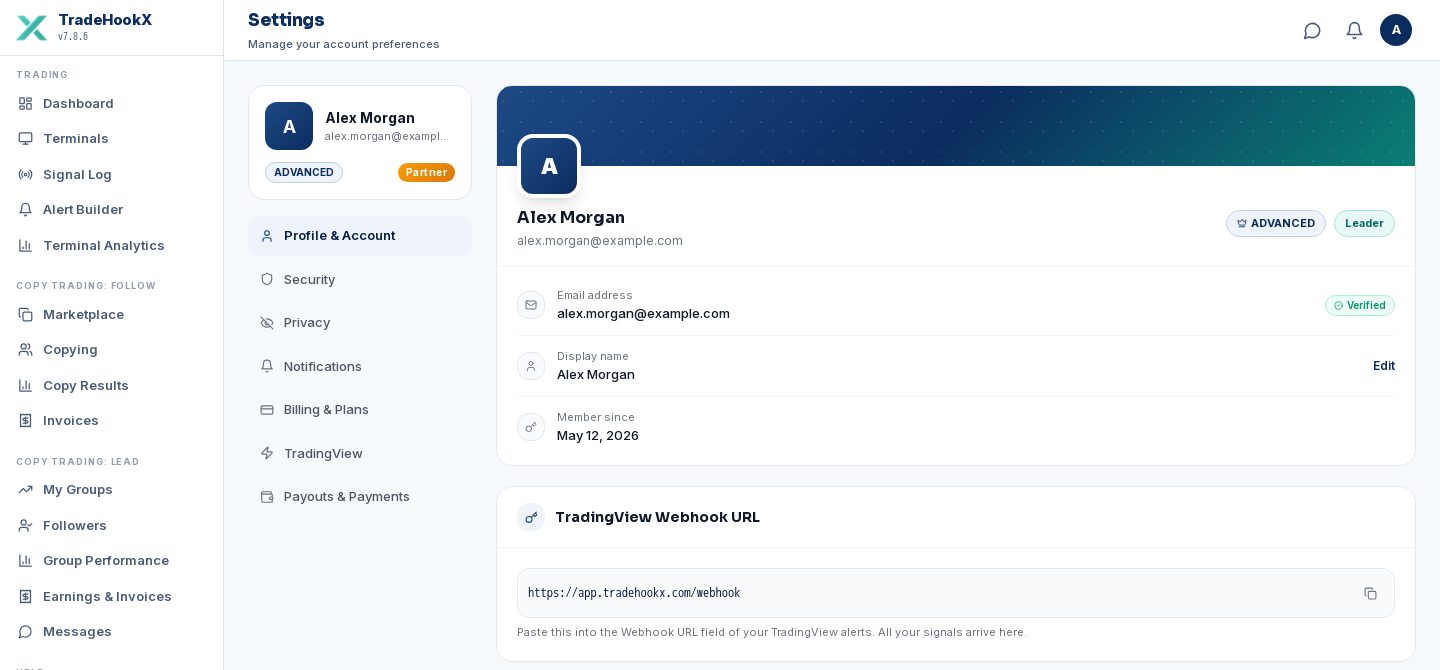
| Item | What you can do |
|---|---|
| Display name | Click Edit, type 2-60 characters, Save. Shown in the portal and to leaders you follow. |
| Email address | Your login. Verify it with the code we send if it shows Unverified. |
| Account ID / Member since | Share the Account ID with support when you need help. |
| Your referral code | Your invite code - see Referrals & Partners. |
Security
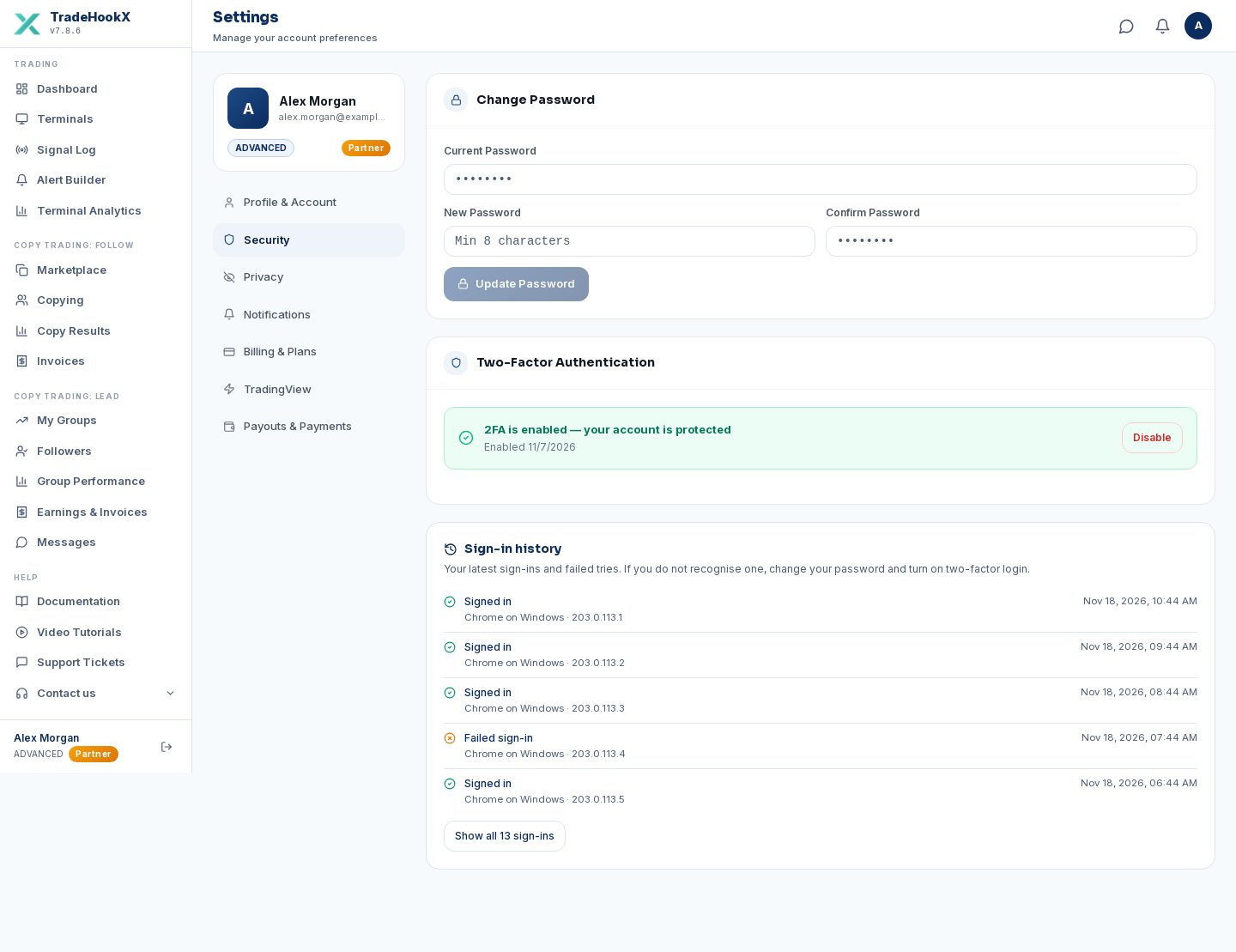
| Item | What you can do |
|---|---|
| Account password | Current password + new password twice. |
| Two-factor login (2FA) | Scan the QR code with an authenticator app (Google Authenticator, Authy...), type the 6-digit code. Save the backup codes - they are shown only once. To switch it off you need your password and a code. |
| Sign-in history | Your latest 5 sign-ins and failed tries; Show all lists up to 30. If you do not recognise one, change your password. |
Privacy
| Item | What you can do |
|---|---|
| Staff access | Every time TradeHookX staff opened the content of one of your alerts or your full licence key (always with the reason shown), sent one of your alerts again, signed in to your account or changed it. Kept for 12 months. |
| The text of your alerts | Keep the original TradingView message, or delete it 1, 7 or 30 days after each alert, or delete it now. Your Signal Log entries stay as they are. |
| Your data | Download everything we hold about your account in one file (JSON). Passwords and other secrets are never included. |
| Delete your account | Type DELETE, confirm with the link we email you, and we delete your account within 30 days. Unpaid copy invoices, groups you still follow or lead, and open trades on a cloud terminal must be sorted first - the page lists what is left. |
Who at TradeHookX can see my strategy?
Our support staff see the content of your alerts or your full licence key only after choosing a reason in our admin panel, and you see each of those openings, with the reason, under Staff access. Looking at an overview of your account is not listed. Our engineers can also access the database directly for maintenance and support; that access is limited to a few people and is not listed per customer.Turn on 2FA
Your account can control real-money trades. A password alone is not enough - switch on two-factor login.In EA Settings, Change history lists every change to that terminal's settings and symbol maps, also kept for 12 months.
Notifications
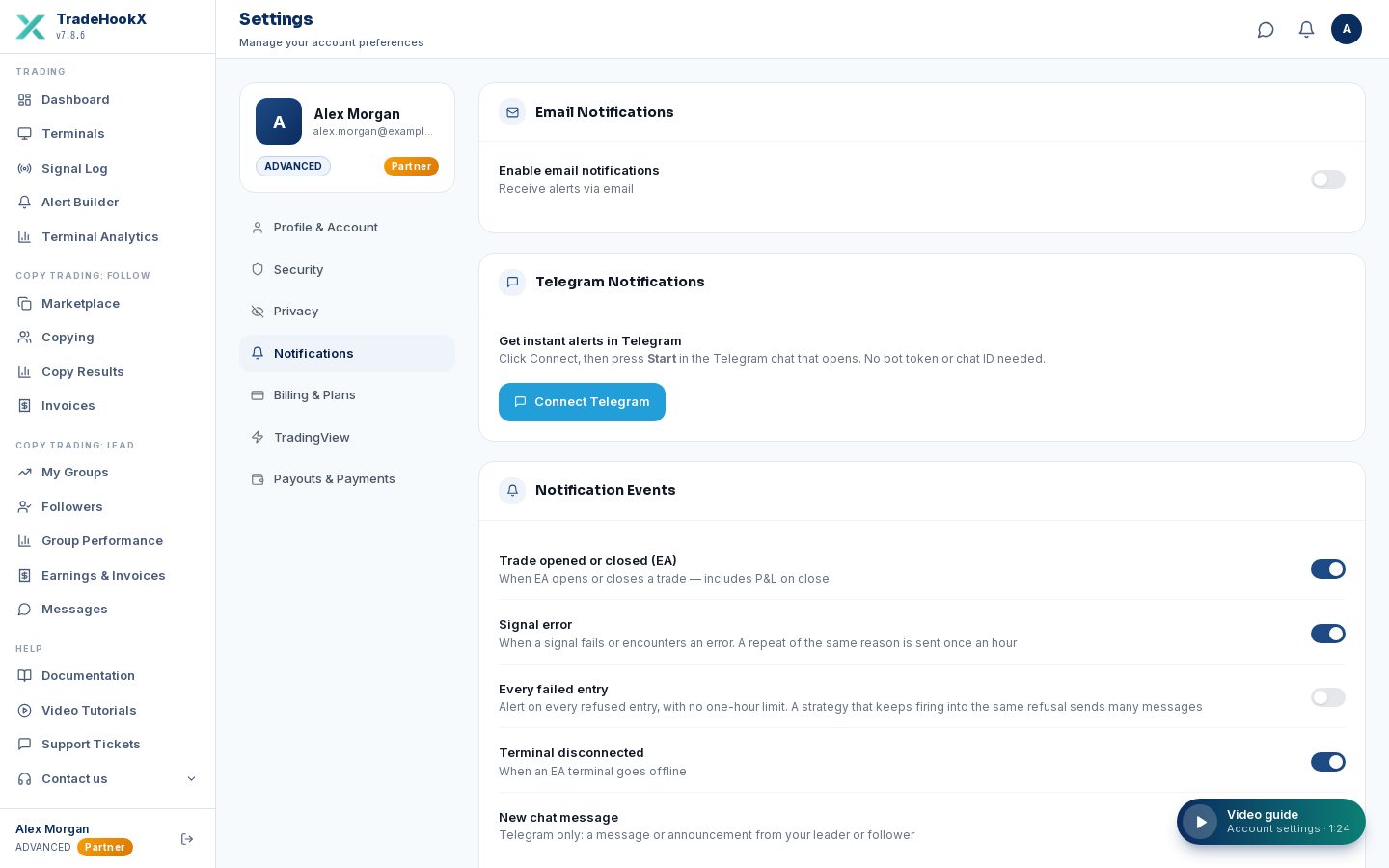
| Event | When you are told |
|---|---|
| Trade opened or closed (EA) | When your EA opens or closes a trade - with the profit / loss on close. A copied trade says which group it came from ("Copied from Gold Hands (leader Sarah)"); a leader's trade says which group it is copied to ("Group: Gold Hands"). |
| Signal error | When a signal fails, with the reason - for a copy, also the group it came from. |
| Terminal disconnected | When a terminal goes offline - and again when it is back online (a bell notice for a terminal on your own PC or VPS). |
Some messages are always sent because they matter for money or safety: copy-trading notices (joins, invoices, payments, pauses, a group switched off or on, copies failing for margin), kill switch changes, payout address changes, trial and renewal reminders.
Failed entries alert once an hour for the same reason, so a strategy firing into a refusal is one message. Turn on Every failed entry to get all of them. A close that closed nothing because your positions are under another magic number also alerts, and so does an order that closed the opposite trade but was refused the new one.
The notification bell
The bell at the top right of every page shows a red number for your unread notices. Click it for the latest 5, or View all for the Notifications page, where you can filter them. They are kept for 90 days.
| Type | What shows in the bell |
|---|---|
| Terminals | A terminal went offline or came back, a broker login problem, or the EA could not be restarted. |
| Missed signals | The broker refused a trade, the terminal did not answer in time, an alert was refused before it reached the terminal, or a copy was missed because your terminal was not connected. |
| Copy groups | A follower joined, left or was removed, a group was switched on or off, a profit share changed, or copies are failing for margin. |
| Billing | An invoice is due, overdue or paid, your plan is renewing or has ended, or a payout address was added or changed. |
Trades that open and close normally are not in the bell. They go by email and Telegram if you switched that on. The switches above only change email and Telegram: the bell always shows these notices. Missed signals also go by email and Telegram, at most one message per terminal and reason each hour.
The icon next to the bell opens your account menu: Account Settings, Billing and Logout.
When you sign in, you stay signed in until you close the browser. Tick Keep me signed in on the Sign in page to stay signed in for 7 days on that browser. Leave it off on a shared computer, and always use Logout there. Some browsers restore your session when they reopen, and phones rarely close the browser, so Logout is the sure way to sign out. Your terminals keep trading either way.
Connect Telegram
Click Connect Telegram
A connect link opens our official bot @TradeHookXAlertsBot. The link is valid for 15 minutes.
Press Start in Telegram
The page shows "Waiting for you to press Start…" and turns green when it is linked.
Send a test
Click Send test - "Test message sent - check Telegram".
To stop: click Disconnect, send /stop to the bot, or block the bot. We never ask you for a bot token or a chat ID.
Billing & Plans
Your plan, renewal date, upgrade / downgrade, cancel, extra copy groups and the groups you lead. Explained in Billing & Plans.
TradingView
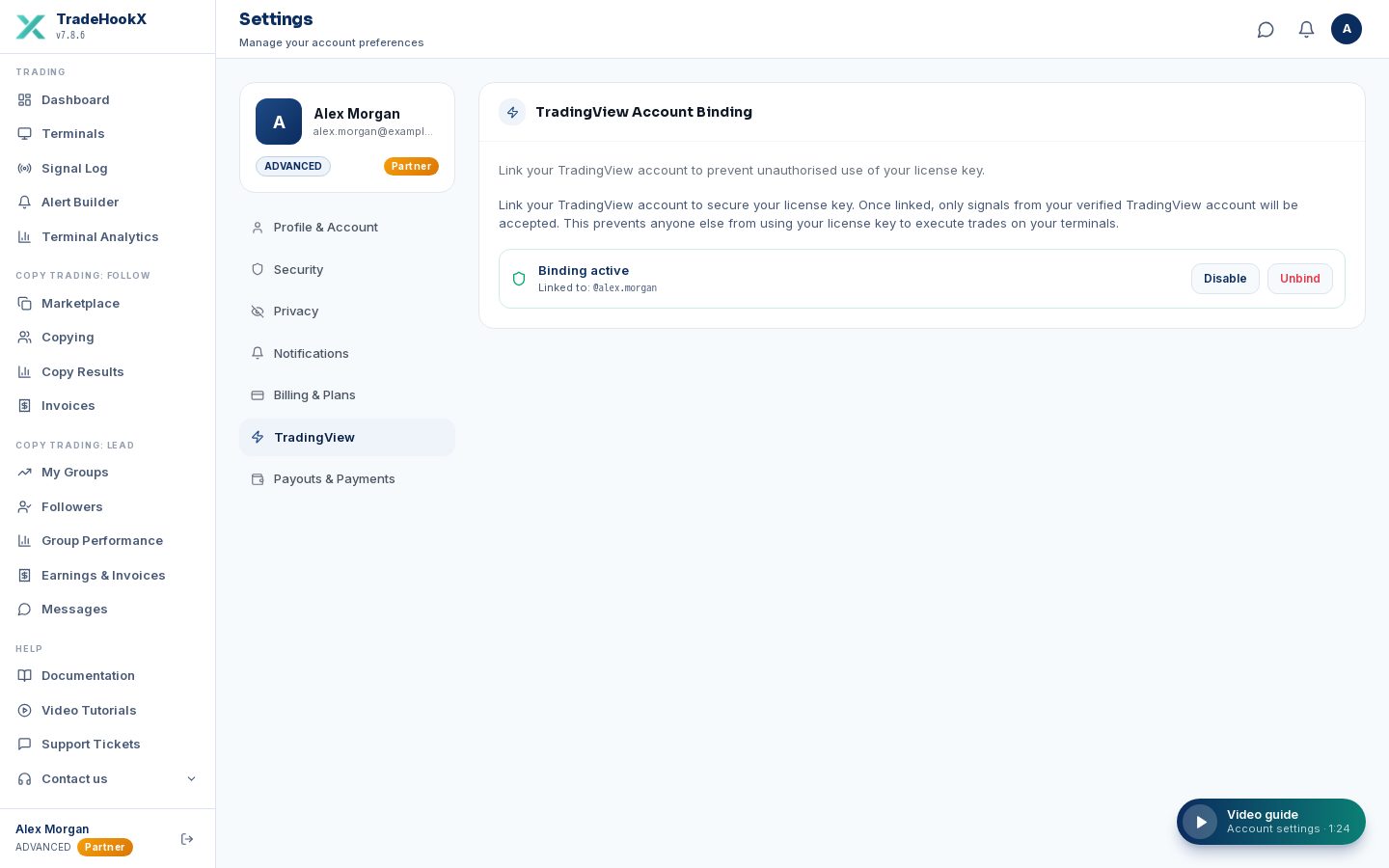
Link and verify your TradingView username so a leaked license key alone cannot trade. Step by step in TradingView Alerts.
Payouts & Payments
Shown to leaders and partners - where we send your money.
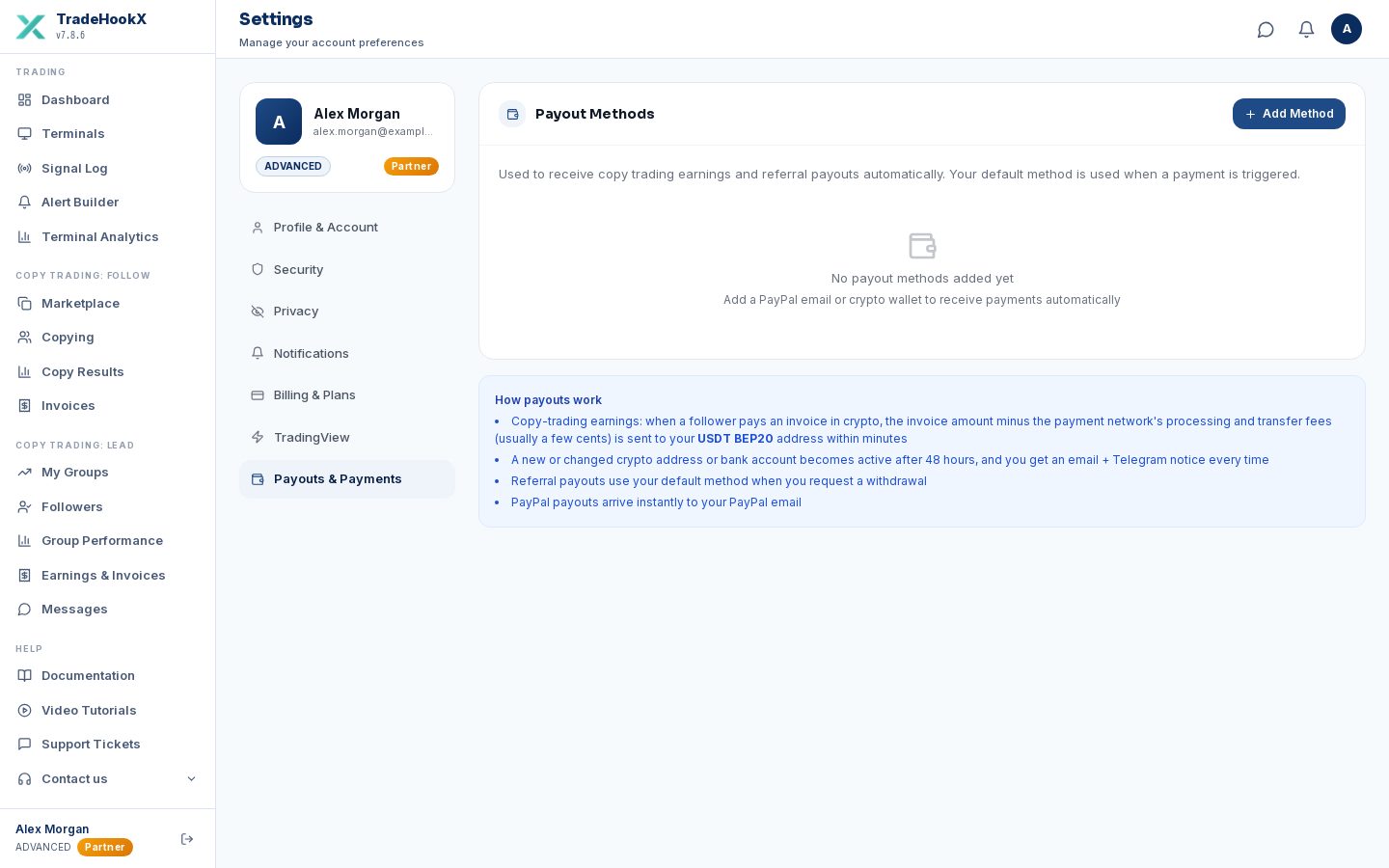
| Method | Used for | Setup |
|---|---|---|
| USDT (BEP20) wallet | Copy invoices your followers paid with crypto. | Paste your BNB Smart Chain address (starts with 0x). Usable 48 hours after adding or changing it; you are notified. |
| Bank account via Stripe | Copy invoices paid by card, and partner commission withdrawals. | Click connect and fill in Stripe's secure form. Choose per-invoice or weekly payouts. The fee table and a worked example are shown. |
Double-check your wallet address
Crypto sent to a wrong address cannot be recovered. Copy and paste the address from your wallet app; never type it by hand.